What You'll Build
- A cinematic landing page with a real-time 3D scene
- A plane or boat that moves inside the environment
- WebGL shaders, lighting, clouds, and water reflections
- Pointer or drag controls that work on desktop and mobile
1. Generate the Visual Direction
Start with a reference image you like. The tutorial uses GPT Image 2.5 Sunburst in Higgsfield, although the same image-editing step can be done in ChatGPT.
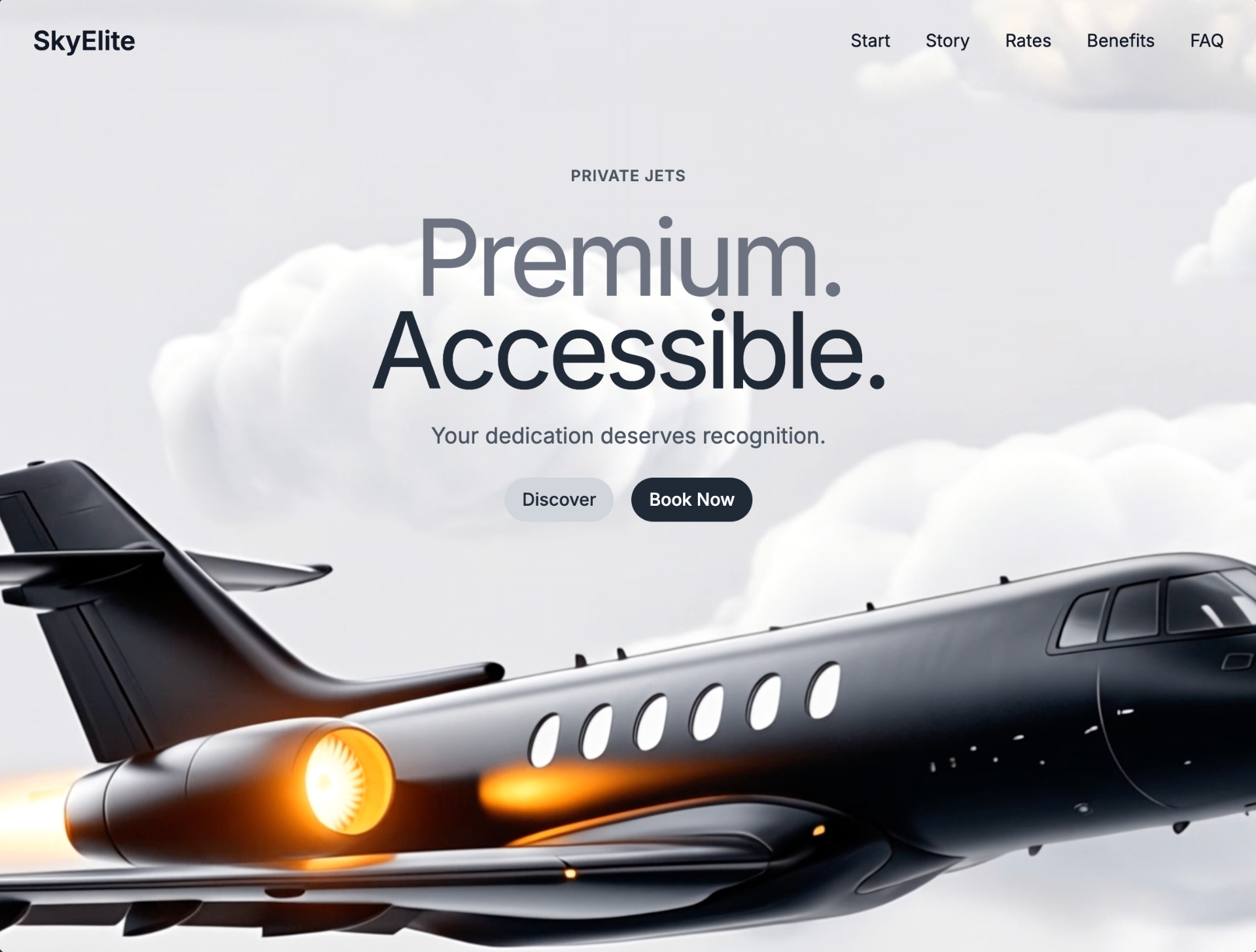
Replace the rocket with a plane and make the background more similar to the second image.
For a second example, a car reference is adapted into a boat scene by asking for a similar image in 8K with the car replaced by a boat.
2. Build the Interface First
Create a new project in ChatGPT Codex, attach the generated image, select GPT-6 Astra, and ask it to match the reference closely. Build only the interface at this stage; the 3D interaction comes next.
Match this as closely as possible. Just build the UI for now. We will build the 3D interaction as a second step.
The Sky Estate prompt used in the video includes the layout, assets, colors, buttons, and responsive behavior:
3. Turn the Background into Real 3D
Once the interface works with a video background, ask Astra to rebuild the scene as an actual interactive Three.js experience rather than leaving it as flat footage.
Turn this site into an actual 3D site. The background is currently just a video; rebuild it with WebGL shaders, good lighting, a real 3D plane, and clouds. Match the reference video as closely as possible.
Astra uses the visual reference to recreate the opening scale change, environment, movement, and responsive layout.
4. Create Motion Assets for a New Scene
To make a new version from scratch, find visual inspiration, generate a customized still image, then animate it with Seedance 2.5. The tutorial uses a short 16:9 clip as a movement reference rather than as the final website background.
- Upload the generated still image as the first reference
- Attach a second video showing the movement you want
- Generate roughly six to eight seconds in 16:9
- Use that clip to guide the final Three.js scene
5. Adapt a MotionSites Design
Choose a MotionSites design instead of spending credits rebuilding the interface from nothing. Paste its prompt into a new Codex project, replace the original background with your generated video, and simplify the page to one hero section.
Keep only the hero section and use this video as the background. Drop the remaining sections and simplify the page.
Then select Astra for the 3D pass and ask it to create a live Three.js scene with water reflections, lighting, shaders, and a boat moving through the water.
6. Add Interaction and Test Mobile
If the first 3D result feels static, attach a reference video that demonstrates the desired interaction and ask Astra to make the camera view respond to dragging while the subject continues moving.
Make it more interactive. Dragging should change the view, and the boat should swim instead of staying in one place. Use the attached video for movement, and add more color, depth, and light.
Check both desktop and mobile previews. The scene should remain responsive and the drag interaction should work at both sizes.
7. Publish the Website
Download the completed project folder, create a Vercel project, and upload the folder. Once deployment finishes, the interactive website is available on a live URL.
The key is to use generated video as a motion reference, not as the final effect: build the interface first, let Astra reconstruct the scene with Three.js, then refine the interaction with focused follow-up prompts.